Open source for macOS
The capture suite macOS should have shipped.
Screenshots, recording, scrolling capture, OCR and a layered editor. Native Swift, on-device only, open source.
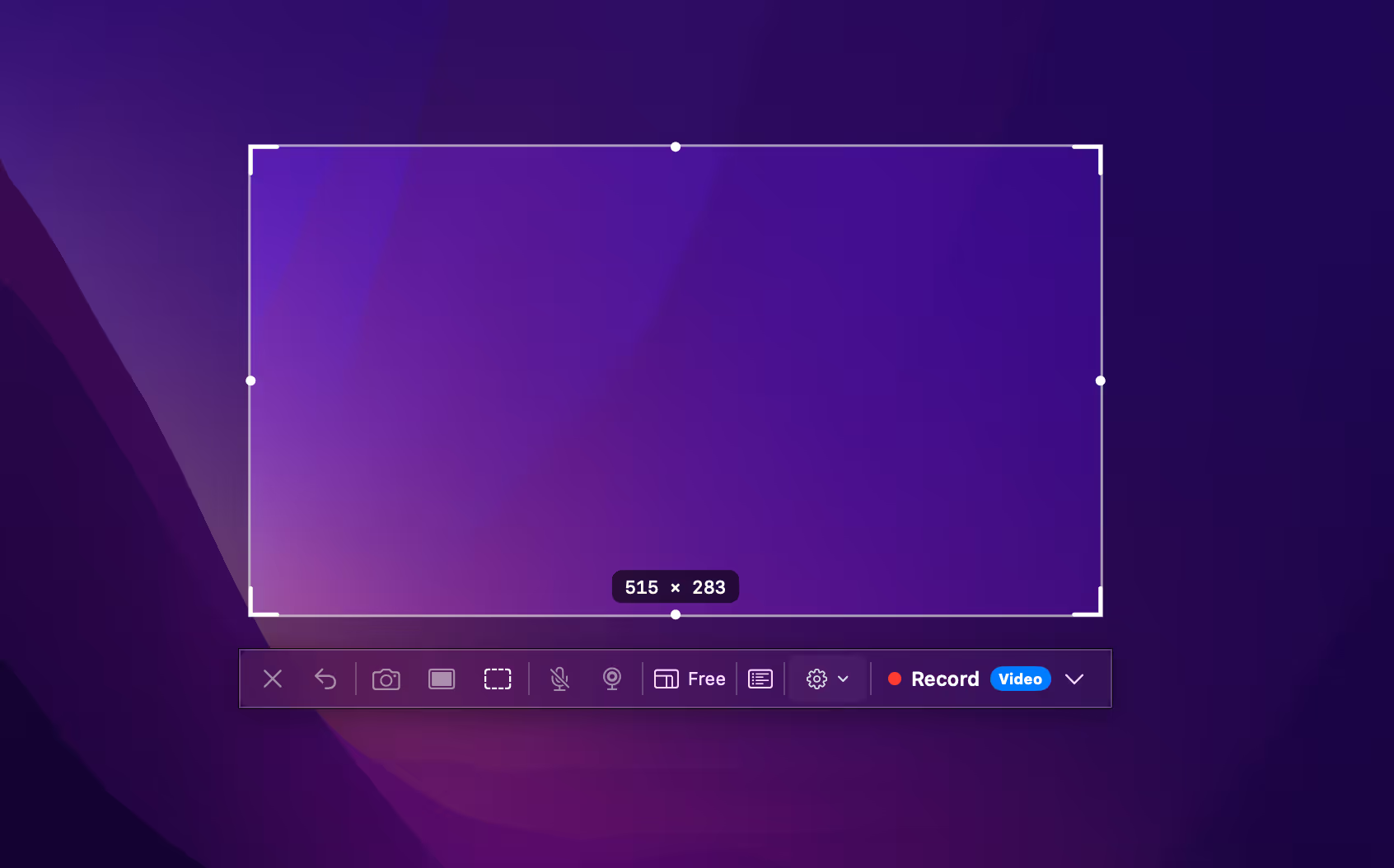
Built entirely on Apple frameworks.
- Swift 6
- SwiftUI
- AppKit
- ScreenCaptureKit
- Vision
- AVFoundation
macOS 15 or later · Apple Silicon and Intel
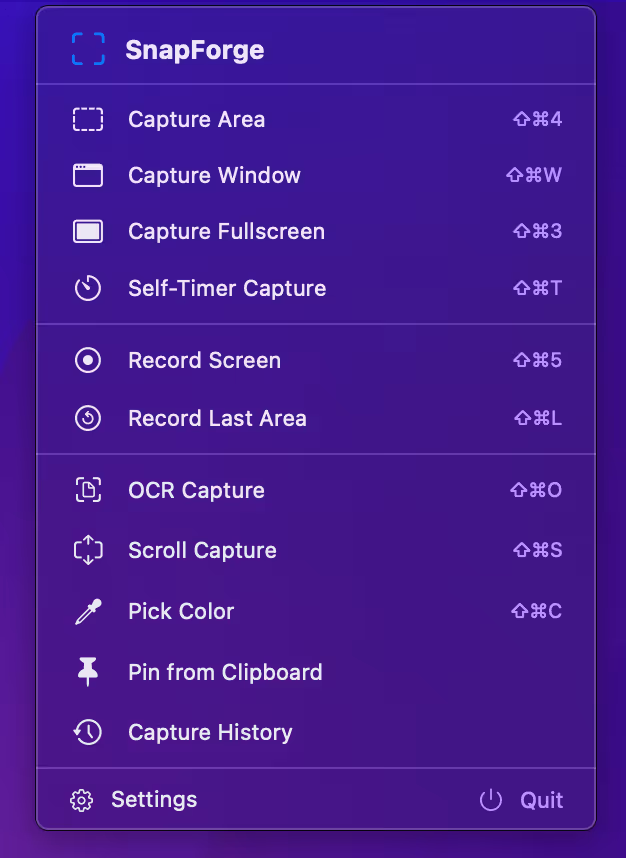
Eleven tools, one menu, no window.
SnapForge lives in the menu bar and nowhere else. Every command has a global shortcut, and every one of them is rebindable.
Capture
Area, window, fullscreen and self-timer, with a crosshair that snaps to what is under it.
Record
Record the screen, or re-record the last area you chose without reselecting it.
Extract
Pull text out of anything with on-device OCR, capture past the viewport, or pick any colour on screen.
Keep
Pin a capture above every window, or reopen anything from history.
Fourteen tools, on layers you can still edit.
Arrows, counters, blur, redaction and text stay as separate objects after you draw them. Reorder, hide, lock or delete any of them later.
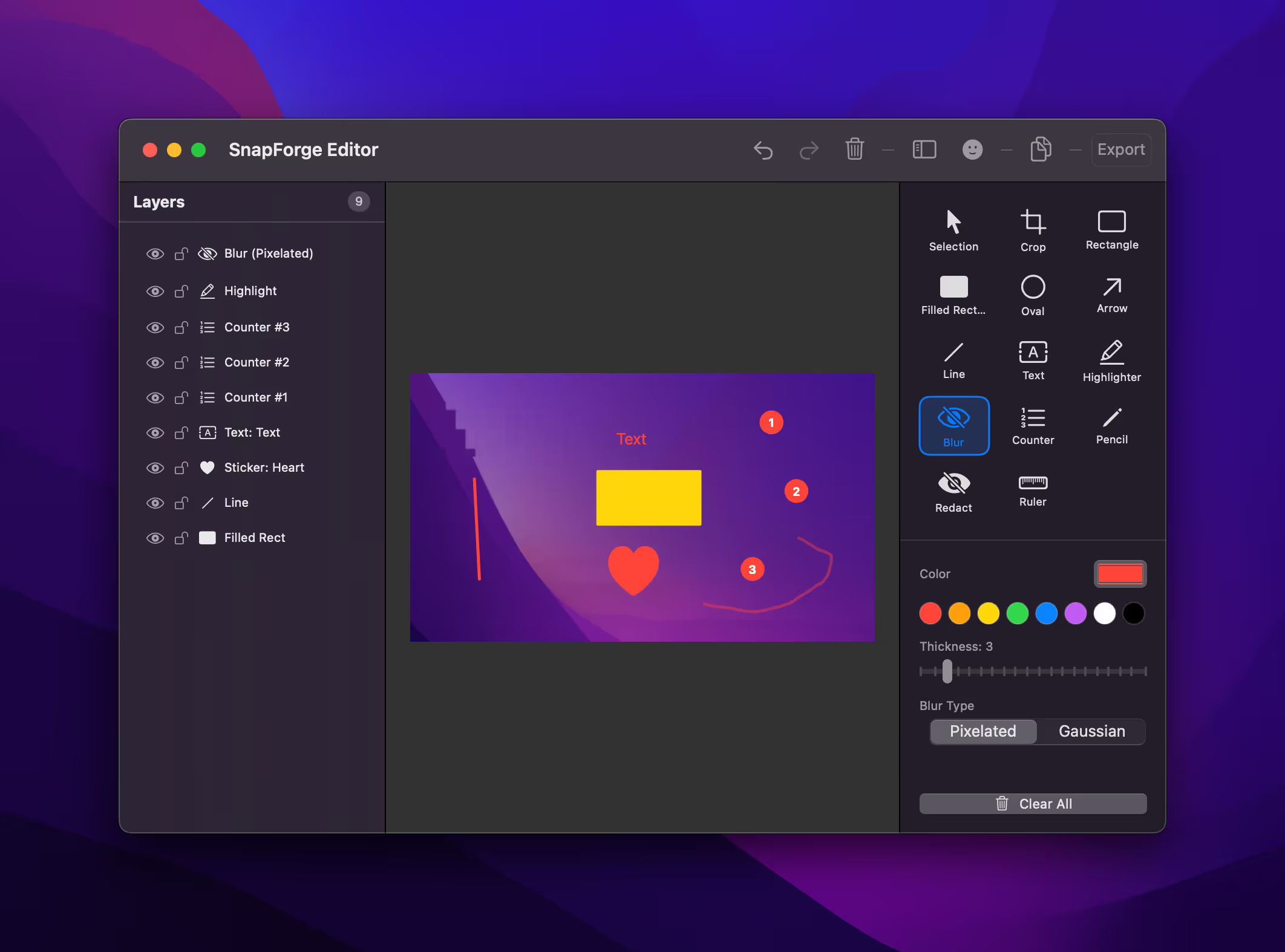
- Selection
- Crop
- Rectangle
- Filled Rect
- Oval
- Arrow
- Line
- Text
- Highlighter
- Blur
- Counter
- Pencil
- Redact
- Ruler
Export to PNG, JPG, WebP or HEIC.
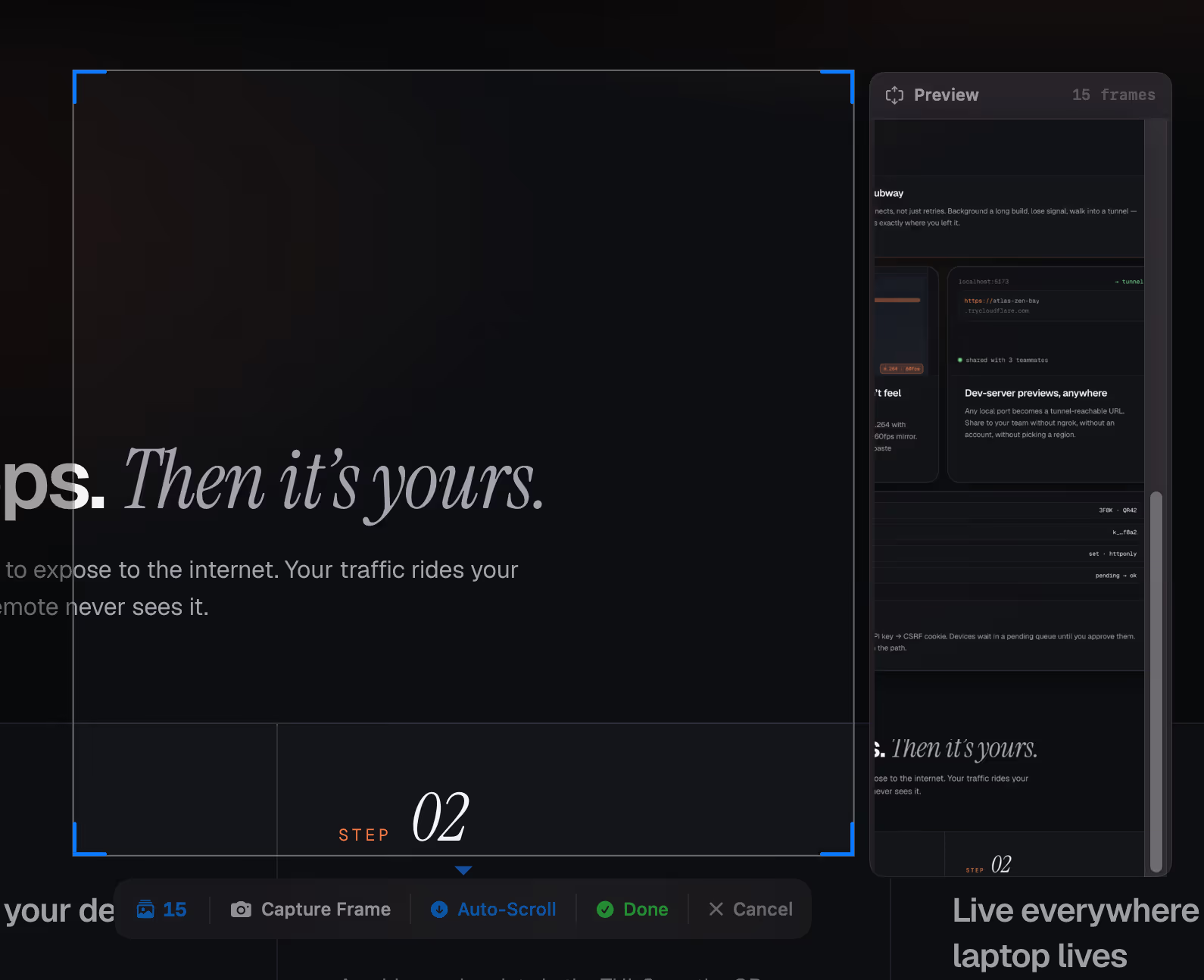
Capture past the bottom of the screen.
Long pages, chat threads, settings panes. Scroll capture keeps shooting past the viewport and stitches the frames into one image.
- Frames stitch as you scroll, with a live preview of the growing image
- Auto-Scroll for long pages, or capture frames by hand when a page fights back
- Stop whenever you like. Done hands the result straight to the editor
Screen recording
Record it, then hand it over.
MP4 or GIF, area or fullscreen
Hardware-encoded video through ScreenCaptureKit and AVAssetWriter. Trim the result without leaving the app, then export straight to a shareable GIF.
Webcam and audio
Camera overlay, microphone and system audio.
Clicks and keystrokes
Ripple highlights and an on-screen key display, positionable around the frame.
Presets
Tutorial HD, GIF Demo and Quick Share, or save your own.
Region snapping
Snaps to window edges, screen halves and thirds, and to 720p, 1080p and 1440p.
Focus mode
Notifications go quiet the moment recording starts.
No account. No cloud. No telemetry.
Capture, OCR and annotation all run locally through Apple frameworks. SnapForge has no backend, so there is nothing to opt out of.
It is free, and it stays free. If it saves you time, sponsorship is the only ask on this page.
SponsorGPL-3.0
Read it, build it, fork it, ship your own. Derivatives stay open under the same licence.
Read the licenceSwift 6, strict concurrency
No Electron, no web views, no bundled browser. The whole app is native code against Apple frameworks.
Read the sourcePublic roadmap
Shipped work and what comes next are both in the repository, with the changelog to match.
Read the roadmap
One extra step, and here is why.
SnapForge is not signed with a paid Apple Developer certificate, so macOS quarantines the download. Clearing the flag takes one command.
Download the DMG
From GitHub Releases. No installer, no bundled extras.
Drag to Applications
Open the DMG and drop SnapForge where it belongs.
Clear the quarantine flag
One command in Terminal, then launch the app.
xattr -cr /Applications/SnapForge.appNotarising needs a paid Apple Developer membership. Sponsors are what gets SnapForge there, and this step disappears when it does. You can alsobuild it from sourceinstead.
Questions
Before you download.
Is SnapForge really free?
Yes. Every feature, no trial, no watermark, no account. It is licensed GPL-3.0 and sponsorship is optional.
Why do I need to run xattr -cr?
The app is not signed with a paid Apple Developer certificate, so macOS marks the download as quarantined and refuses to open it. Clearing the flag removes that mark. Building from source avoids the step entirely.
Which versions of macOS are supported?
macOS 15 or later, on both Apple Silicon and Intel.
Where do my captures go?
To your machine, and nowhere else. There is no upload, no sync and no backend. Capture history is stored locally and you choose the save location.
Can it record system audio and the microphone?
Both, along with a webcam overlay. Recording runs through ScreenCaptureKit and AVAssetWriter.
What can I export?
Images as PNG, JPG, WebP or HEIC. Recordings as MP4 or GIF.
How do updates work?
Through Sparkle. You get a prompt when a release lands, or you can check manually from Settings.
Is Vietnamese supported?
Yes. The app ships in English and Vietnamese.
Take the shot.
Free, open source, and entirely on your Mac. Built in Hanoi by one developer.